Posts

Showing posts with the label Power Apps

PowerApps Delegation
Image
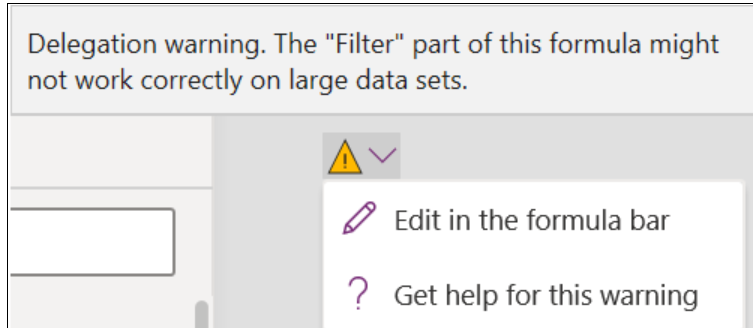
     Delegation is a very important concept that you have to understand, especially when you will be working with large data sets in PowerApps. First, let’s know that “delegate” means to assign tasks to someone else.(Here power app will delegate data processing to data source) What is PowerApps Delegation?      In PowerApps when you are working with the data sources (Dataverse(CDS), SQL, SharePoint, etc…), the data processing tasks are assigned to data sources rather than done by PowerApps itself. This is called PowerApps Delegations . Delegable Data Sources: Delegable data sources mean the data sources that process data logic in a similar to PowerApps does. Not all the data sources support all the functions of PowerApps. Delegable data sources: Common Data Service (CDS) also called as Dataverse SQL Server SharePont Delegable functions Not Delegable:  When we working with large data some function will not work(not Delegable), it will give you a warnin...

Helpdesk App using Power App

Image
Here we will create a simple helpdesk app with Admin & user login. Sample  Admin Screen: (Percentage Complete & Task Status Fields enabled for admin in edit screen) Sample  User Screen: In this post we will learn about: Connect to SharePoint DataSource (we have more than 200 connectors) Office365users - Connector(Give details about current logedin User, Office365users.MyProfile().Mail) Screen - Create Screen with different templates(Blank,Scrollable, Success,Form, etc) Controls - (Image, Rectangle, Button, Lable, Icons(BackArrow,Circle,Plus,Trash)) Gallery -Control to Read Item from SharePoint(like GridView) Grouping Controls - Group multiple Controls as single control Forms - PowerApp provides forms to Edit/Display SPList item(we can change Default mode to New/Edit/View)           Events : Set (GlobalVariableName, ValueToAssign) - create new global variable Navigate (ScreenNameToNavigage,ScreenTransition.None) - Move between screens Submi...

Power App Types

Image
We can create 3 types of apps using PowerApps Canvas app Model-driven app Portal Canvas App:      Design the app by dragging and dropping elements onto a canvas. We will use formulas(excel type expressions).     Used to extend SharePoint, i.e we can customize SP List Library Forms     Connect to any data source.(ex. connect to SQL, SharePoint) Model-driven App:      Build an app on top of data that's already stored in Dataverse — the smart, secure, and scalable low-code data platform. It is about defining dataverse with tables dashboards & charts, etc... Dataverse :  cloud-based storage space( new name for the Common Data Service) Portal:     It's a website.  Create a no-code website for internal or external audiences. Customize it to get the features and the look you want. We can show all dataverse data

PowerApps Introduction & Cascading Dropdown using PowerApps

Image
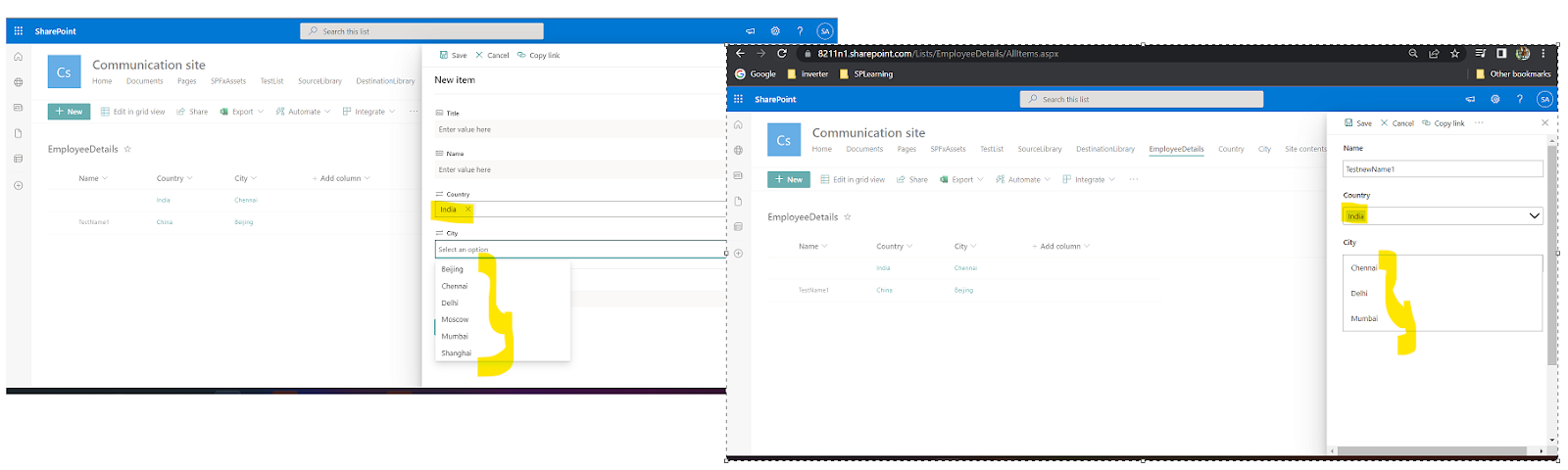
 PowerApps Introduction:     Power Apps is a service that lets you build business apps with no coding experience required. Using Power Apps web part it can be added to page by the app’s web address or the app ID. Power Apps also provides an extensible platform that lets pro developers programmatically interact with data. Cascading Dropdown using PowerApps     In this example we will see how to create cascading dropdown using PowerApps. We have 2 dropdowns(Country & City). Based on Country dropdown city will be loaded. SP List setup: we have 3 lists. Country - Contains Country Names City    - Contains Country & Releva nt City Names (Country is lookup from Country List) EmployeeDetails     - Contains EmployeeName, Country & City (Lookup from City List) Open PowerApps Studio: Here in Employee details new form -> Any country selected City dropdown will show all city names irrelevant to the country. Using PowerApps w...

Power Platform All Posts

Power Automate(MS Flow) Power Automate Introduction & Sample Flow to Create SharePoint List Item Invoke One Flow From Another Flow (Call Child Flow from Parent Flow) Copy Files from one SharePoint library to another using Power Automate Document Retention & Archival using Power Automate Document Retention & Archival With Email & Logging PowerApps Power App Types PowerApps Introduction & Cascading Dropdown using PowerApps Helpdesk App using Power App PowerApps Delegation For more details refer this YouTube  link