Posts

Showing posts with the label Microsoft Flow

Copy Files from one SharePoint library to another using Power Automate
Image
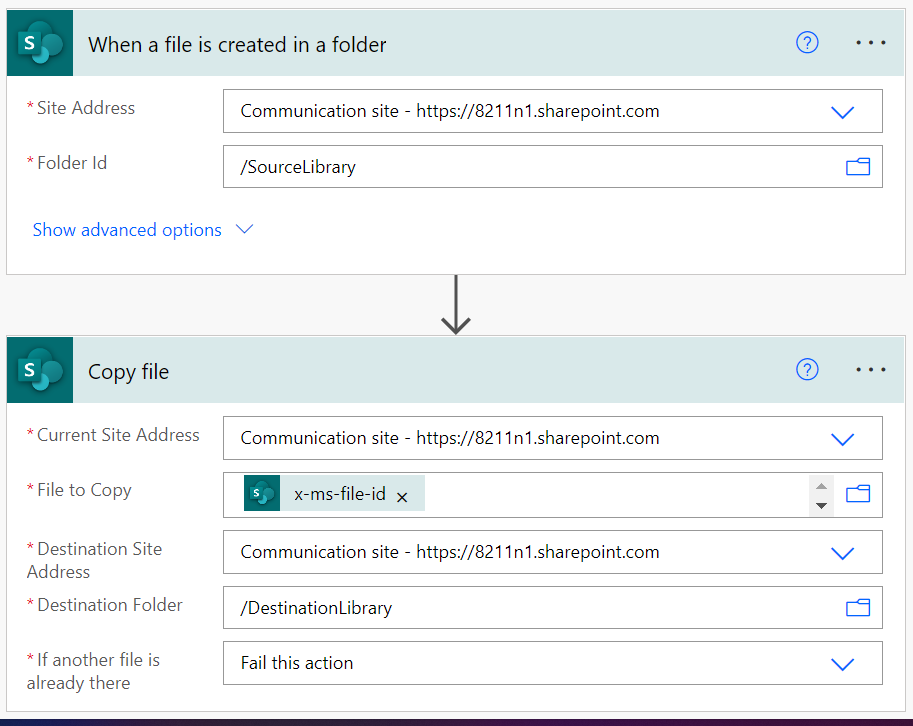
     In this post we will see how to copy files, when we upload files to one SharePoint library it will be automatically copied to another SP library using Power Automate. Scenario 1 : Copy File To Same Level (Files will be copied library to another library & not subfolder level) Scenario 2 : Copy File To Different Level dynamically(Files will be copied library sub folder to another library any subfolder) Scenario 1: Copy File To Same Level "SP Library -> SP Library"      Copy File To Same Level. Files will be copied library to another library without subfolder levels.(Below is image is the complete code for scenario 1) Create: From your Power Automate site > Create > Automated Cloud Flow > Enter Flow Name > Select trigger "When a file is created in a folder SharePoint" > Click Create Enter SourceFile Details: Select trigger options of which "Site Address" & Library name > Click New Step > Search "SharePoint" >...
Invoke One Flow From Another Flow (Call Child Flow from Parent Flow)

Image
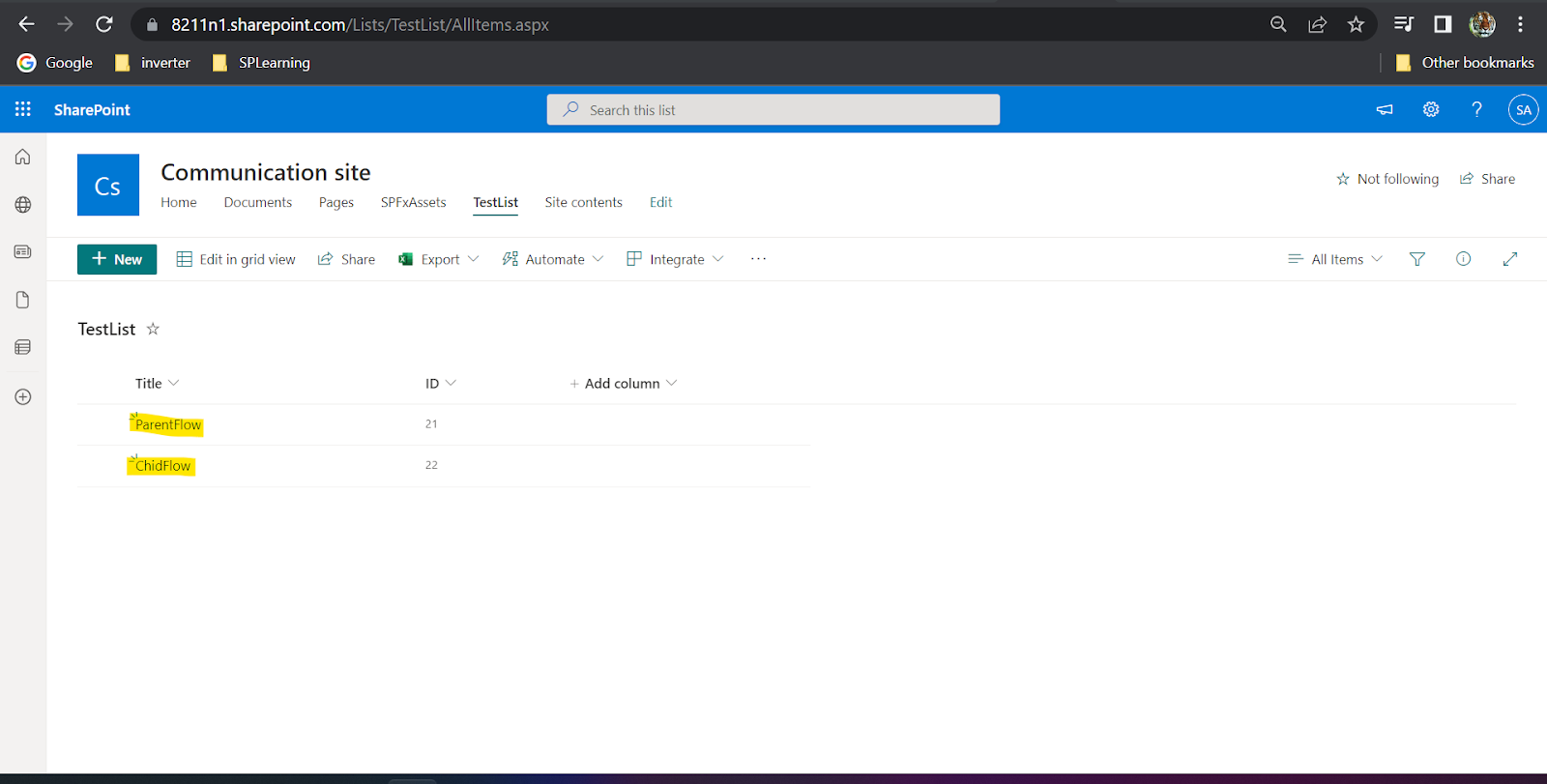
    In this example we will be creating SharePoint List items by child Flow and Parent Flow. Here we will call Child flow from Parent flow & both will create new items in List. Create Child Flow:               Child flow will be triggered "when HTTP Request received" & it will create new SP list item.   To Create Flow >  From "SharePoint admin center" > Power Automate Power Automate site > Create > Instant Flow Enter Flow Name & choose how to trigger the workflow "when HTTP Request received", click Create. Click on the header & click on payload to generate schema  Enter  { "Title" :""} & it will generate schema like below. then click "New Step" In new step > Search "SharePoint"  > Select "Create Item" > select SP URL & List name For the Title field when we click it will suggest to add Title from Parent flow(which we created in 1st step & Note: This t...

Power Automate Introduction & Sample Flow to Create SharePoint List Item

Image
Power Automate Introduction:    Power Automate is  a cloud-based service that allows users to create workflows themselves.  Microsoft Flow is now called as Power Automate Example (Create SharePoint List Item):     Here we will create one simple flow which will create SharePoint list item. 1. Create Flow:             From "SharePoint admin center" > Power Automate Power Automate site > Create > Instant Cloud Flow > Enter Flow Name > Select Manually trigger a flow > Click Create Next page click "New Step" >in Operation enter "SharePoint' >In Action select "Create item" In this Create Item Action select Site URL > Select List Name > Enter Title value of new item > click Save. Now we have successfully created our Flow. next we need to run this flow Run Flow:  Click On "My Flows"> Click "Run" button of our Flow > Click Continue & Run > Now we can see the items created in the Sh...
Add or Update Rows in Excel from SharePoint with Microsoft Flow Link:  https://www.youtube.com/watch?v=ibqFGgkZ1Cs